Player setup

In this section you will learn how to create and properly configure a player.

In this section you will learn about the following topics...

Add billing address & create player

01

To get started, please add a billing address. To do this, go to DropSign>Settings>Account>Profile and first agree to the terms of service. Note: This also applies to the free trial version.

Agree to the terms of use.

02


Then enter your full name, country, and address.

Note: Enter the name and address of the person who is the payee.

Add billing address.

03

Finally, you need to add a valid payment method (credit card or Google Pay are accepted).

Note: The first month is free. After the trial period (30 days) and if you don’t cancel in time, the payment method you provided will automatically be charged the monthly fee. Usage of active players is always billed at the end of the month and charged again in the following month. You can cancel your subscription at any time.

Add payment method.

01

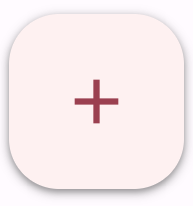
Click the Player tab on the left side of the navigation bar to access the player overview page. Now, press the plus (+) icon in the bottom right corner of the screen and add a new player.
Bild: Plus-Symbol in der DropSign App

Add player.

02

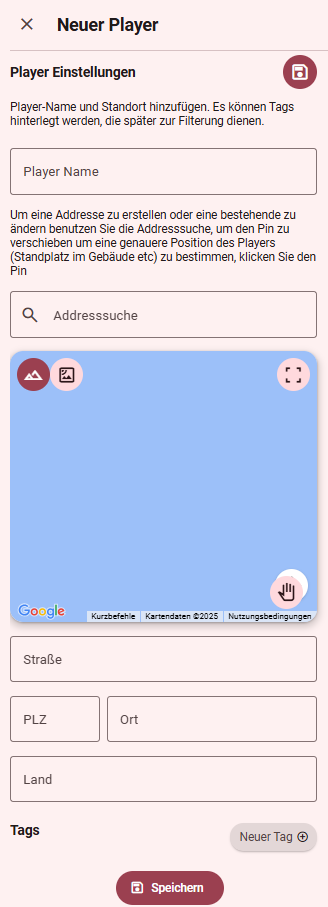
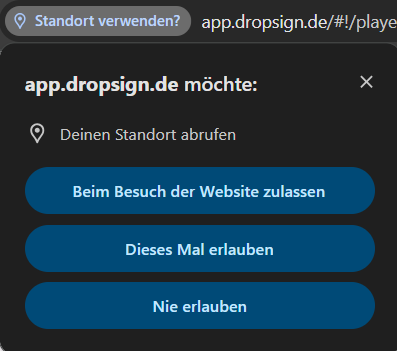
Add any player name and specify the screen’s location. You can also tag the player with tags and add an image of the location. Note: If you are at the screen’s location, you can also have your location automatically determined via your browser or mobile phone.

Configure player settings.

Bild: Playereinstellungen in der DropSign App
Bild: Standortfreigabe im Browser (hier: Chrome)

03

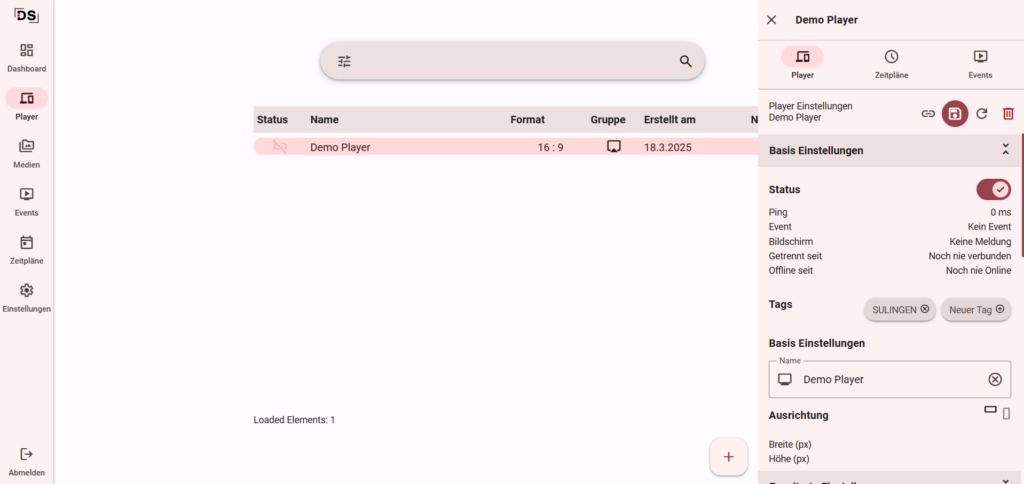
Once the player has been created, select it from the overview. After selecting it, a window with the player configurations will open on the right. Set the status to „on“ here if you want to activate the player. The next step is establishing the player connection.

Note: You don’t need to set the status to active if you don’t intend to use the player yet.

Set status.

01

Make sure you are connected to the network. The screen should now display a QR code. You can scan this with your mobile phone (using the camera) and establish a connection to the player.

Connect player (using QR code).

02

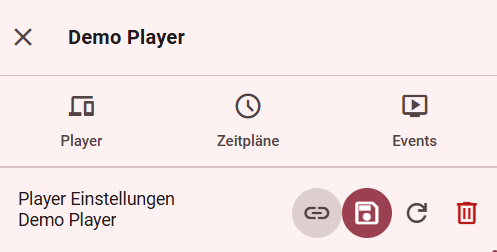
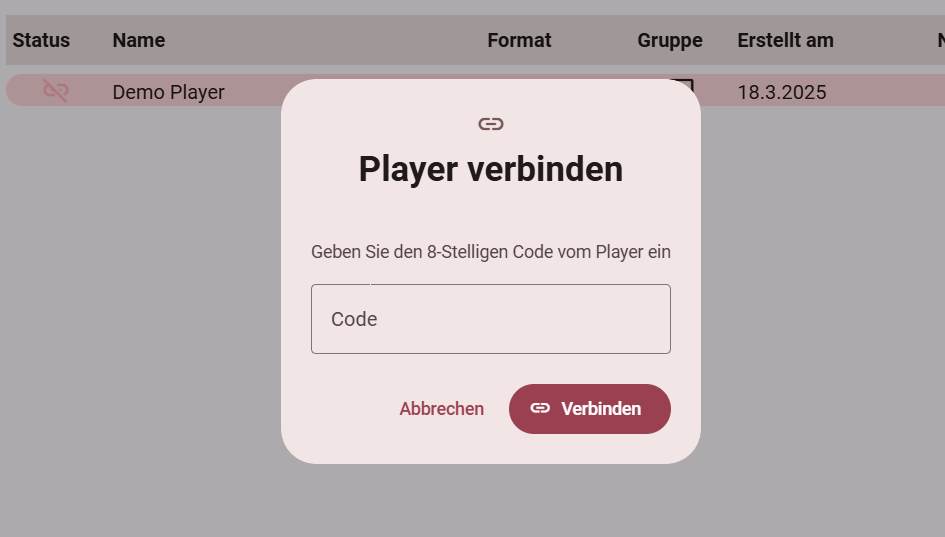
To establish a connection with the player, click on the link icon (see image) and enter the 8-digit code that will be displayed on your screen (below the QR code).
Bild: Verlinkungs-Symbol in der DropSign App

Connect player (without QR code).

More topics...
FAQ

On which platforms does DropSign run?

DropSign runs smoothly on various platforms. It is compatible with Linux, WebOS, Tizen, Android, Windows and Apple devices, offering you maximum flexibility.

Which hardware does DropSign support?

No matter which manufacturer you prefer – DropSign works seamlessly on all devices. Whether Samsung, LG, Iiyama, Hikvision, Hisense, or others – our solution is compatible with a wide range of hardware brands, so you don't need to worry about any specific equipment requirements.

Which formats does DropSign support?

DropSign adapts flexibly to any screen size and format. Our software supports customized display solutions and enables you to play your content regardless of whether you're using large LED walls, small displays, or special screen formats.

DropSign Support Center

If you have any questions or need assistance, our support team is happy to help.
You can reach us by email at support@dropsign.de und -
and by phone during our business hours.

Need help?