
Media
In this section you will learn about the following topics...
Media
01
Add media.
02
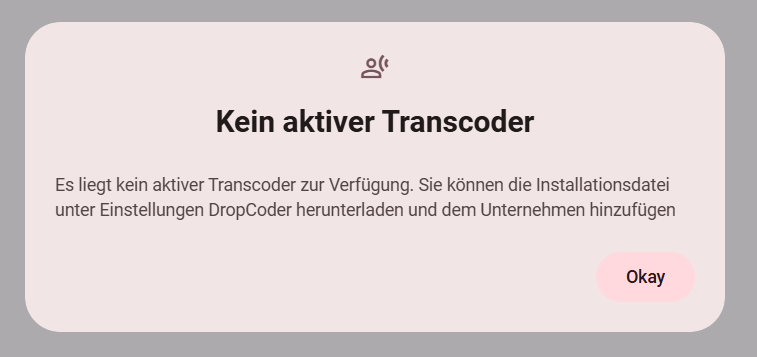
If you are unable to upload media, please ensure that the DropCoder has been successfully downloaded, installed, and activated. For installation assistance, please click the link.
Note: The DropCoder only needs to be activated on one computer within your DropSign network.
Install and activate DropCoder.
03
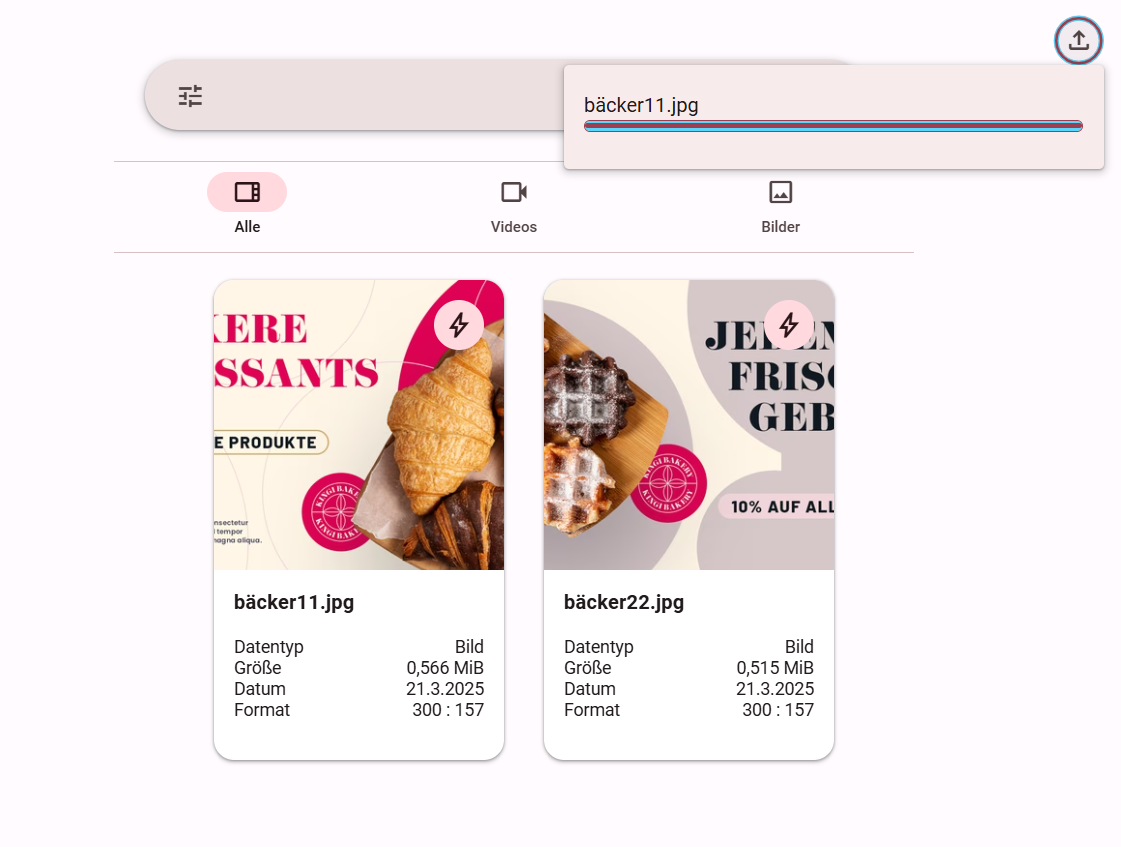
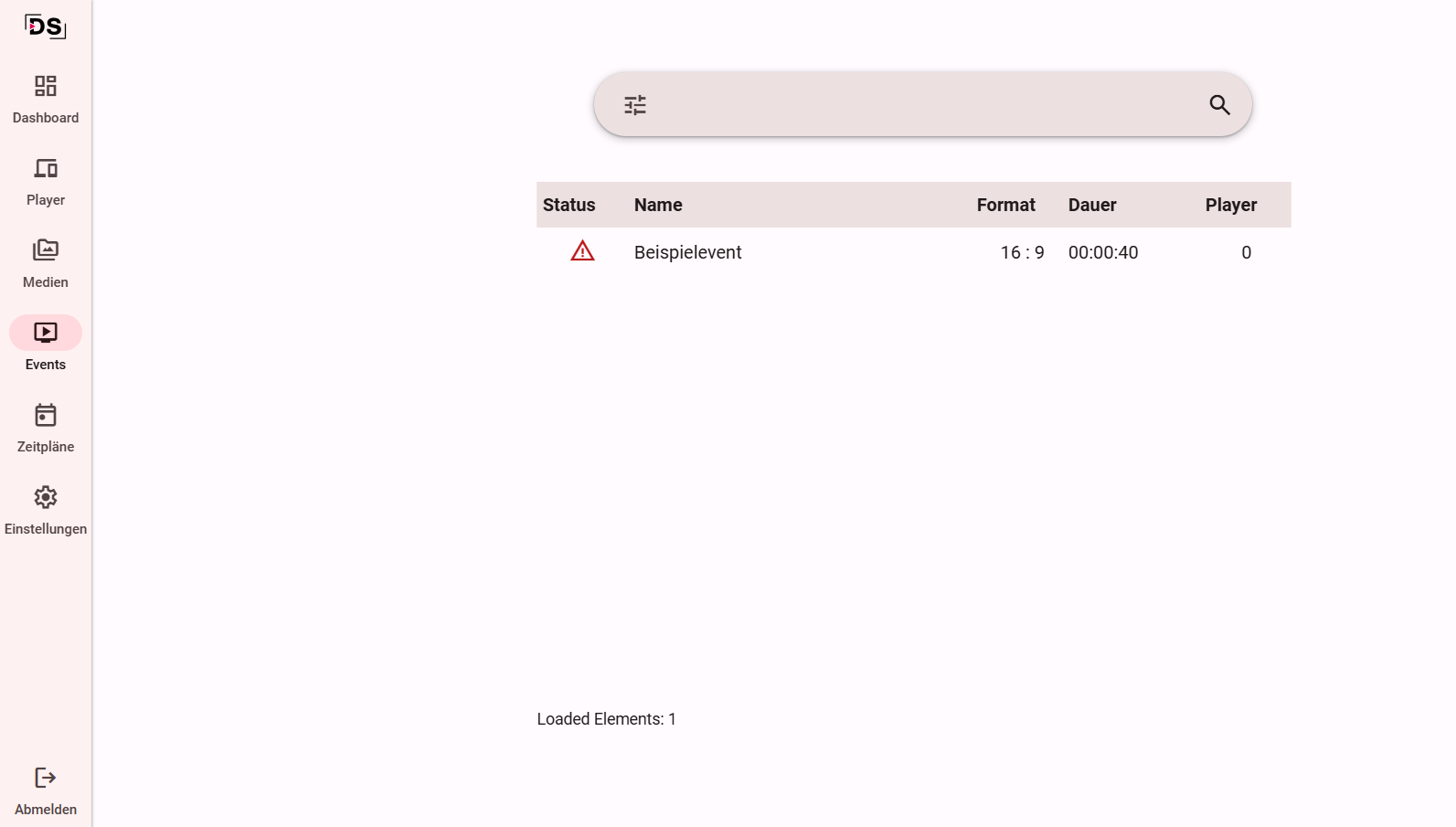
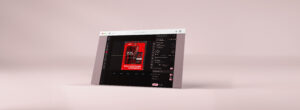
Simply upload the desired elements via drag and drop, regardless of which tab within the software. The transcoder handles the formatting automatically – you don’t need to worry about anything else.
Note: You can monitor the upload process and its duration in the navigation bar at the top.
Upload and format media.
01
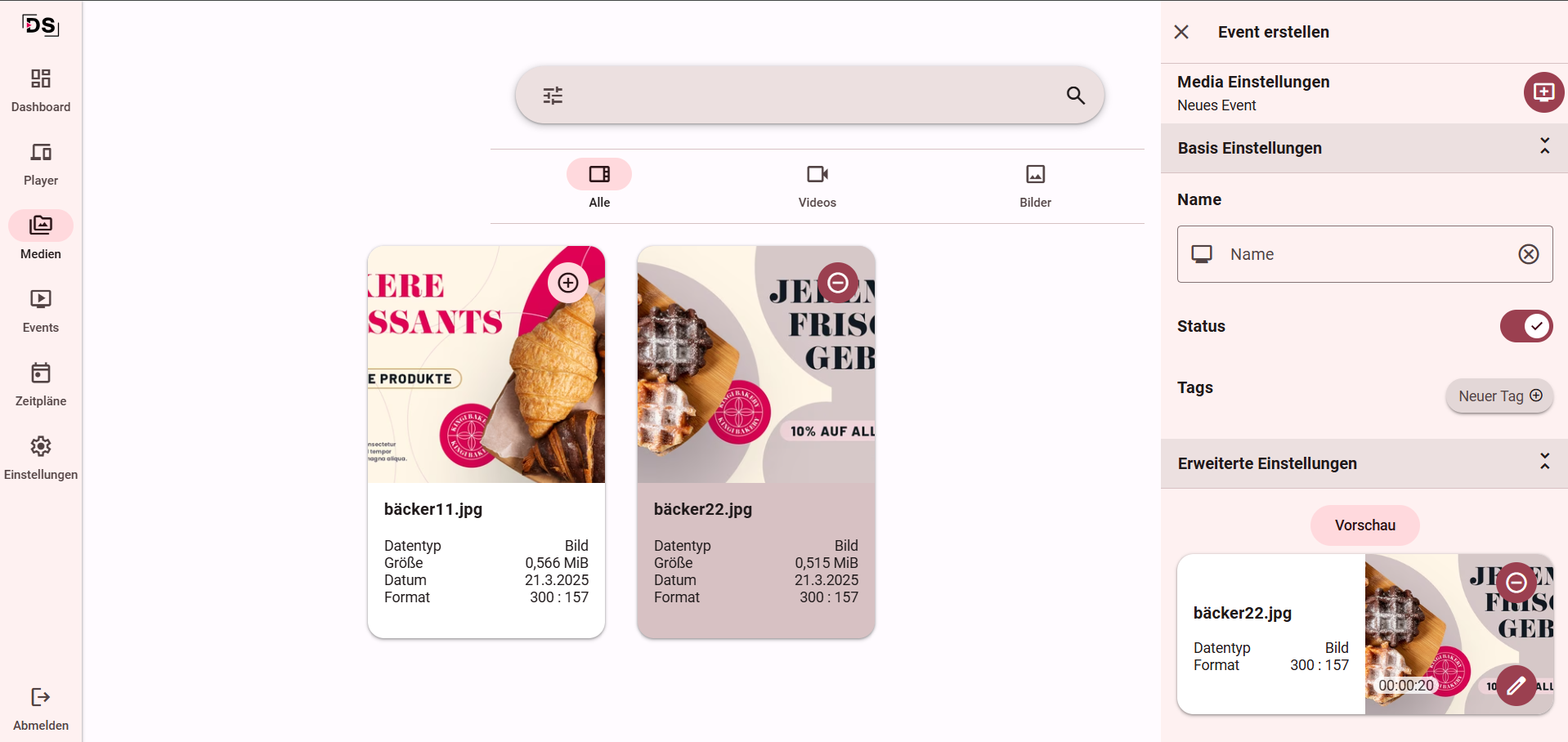
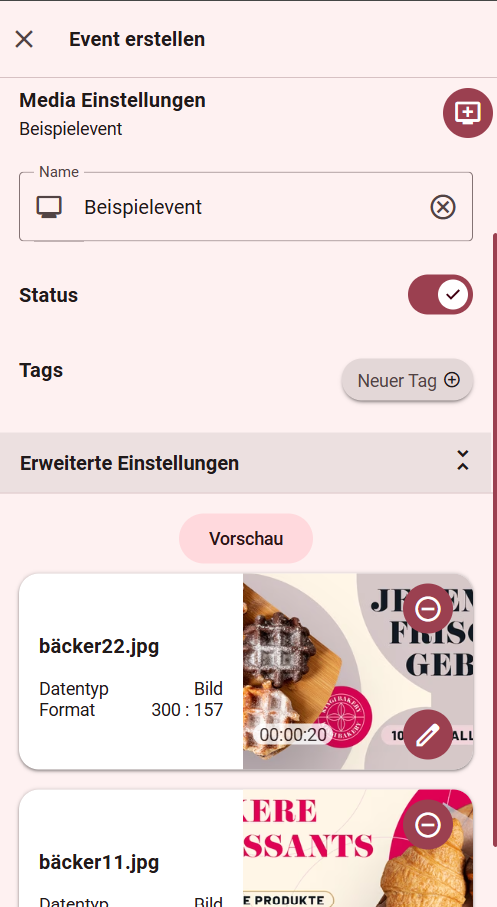
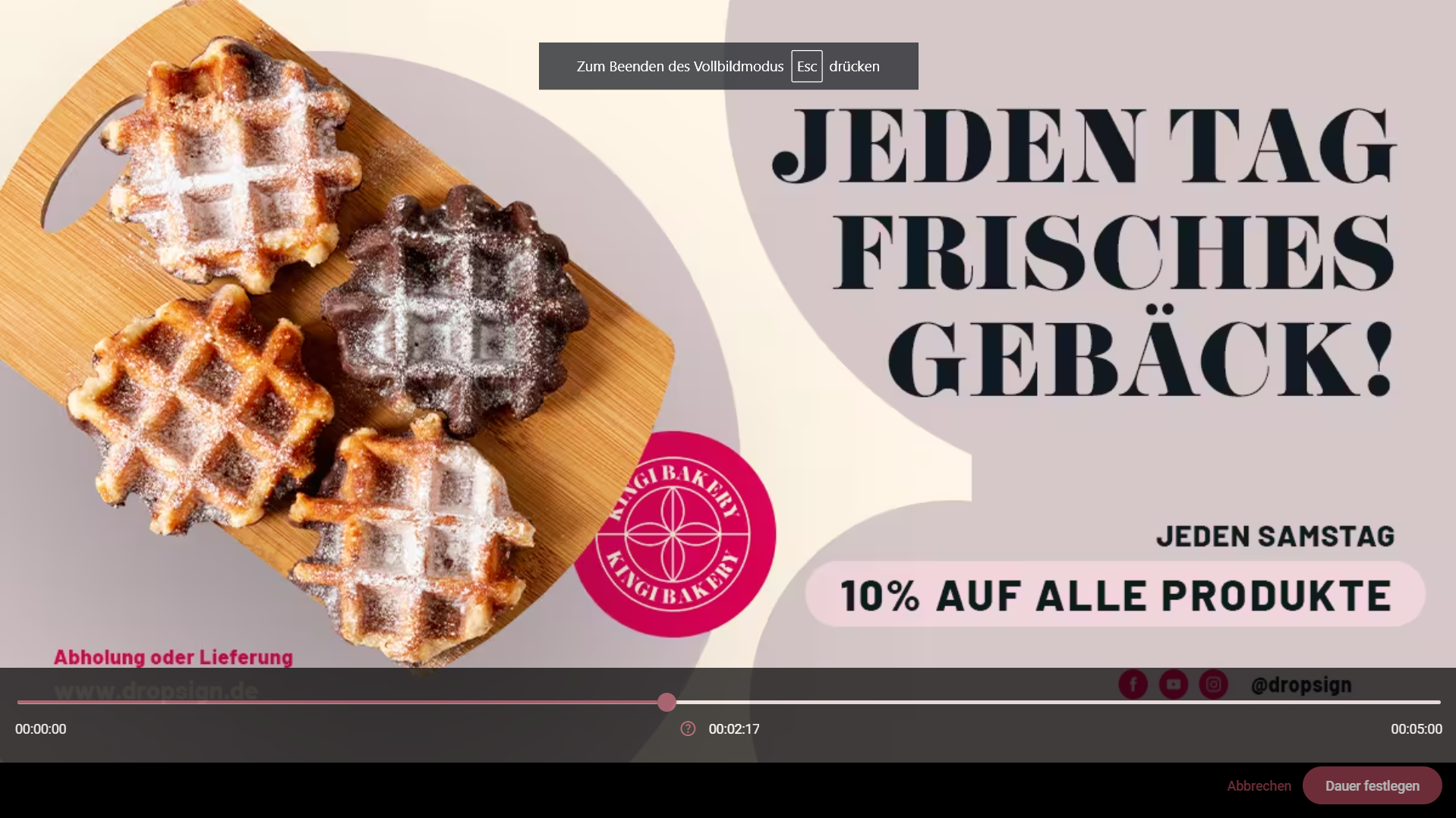
The order of the individual media within the event can be adjusted. Video segments and orientation can also be selected. Then click save. Media can be added or removed from the event using the plus (+) and minus (-) symbols in the upper right corner of the media.
Note: Tag your events with tags, to easily filter them later.
Edit media.
More Topics...


Player setup
In this section you will learn how to create and properly configure a player.
First Steps
In this section you will learn how to register and log in to DropSign, and how to reset your password.

FAQ
What is an event?
What format should my media be in?
What is a Quick-Start-Event?
DropSign Support Center
If you have any questions or need assistance, our support team is happy to help.
You can reach us by email at support@dropsign.de und -
and by phone during our business hours.